In the Bookings section of the left-hand menu, agents can manage their working hours, block specific times and automatically sync their schedule with their calendar (Google or Outlook) under the My Availability option. This allows you to maximize your available time and plan for upcoming commitments.
Please note that an agent must be assigned as a resource in order to set their availability. A user must have the Manager or Owner role to make an agent a bookable resource for a specific service.
- To make an agent bookable: Go to Bookings > Services (select service) > Resources and click the + next to their name.
- If an agent is missing: Ensure they are invited to the Workspace via Settings > Users > Invite Users.
Working Hours
Agents can set the specific days and hours they are available for bookings. Note: Agent availability will override the Service availability set by a Manager. However, if an agent does not specify their own working hours, the system will default to the general Service Availability.
Availability is set on a daily basis and can be configured as specific hours, 24 hours, or Closed.

Blocked Time / Out of Office
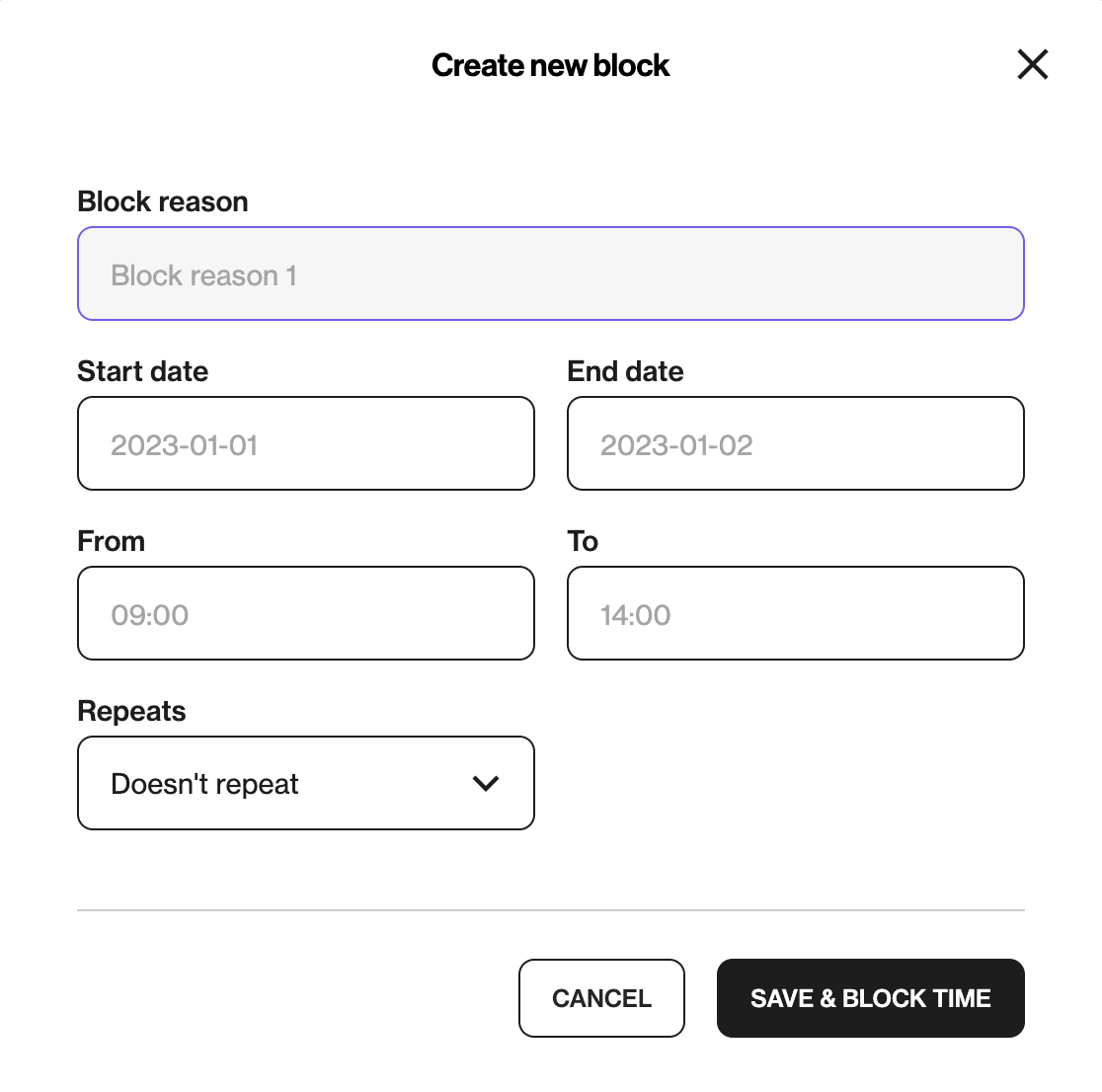
Use blocks to restrict times when you are unavailable (e.g., lunch breaks or vacations). Blocks prevent shoppers from booking appointments during these periods.
Set a Single Time Block
Give the block a name and choose your date. An end date is always required. In the Repeats dropdown, select Doesn’t repeat.
Set a Recurring Time Block
Choose the date range and the specific daily time for the block.
- For a Daily repeat, select Daily in the Repeats dropdown.
- For Weekly repeats, choose 1 in the Every dropdown.
- To repeat every third week, choose 3 in the Every dropdown.
Calendar Sync
Agents can connect their personal Google or Outlook calendars to ensure their availability stays up to date automatically.
- Any hours marked as "Busy" in your connected calendar will automatically be blocked in the system.
- Bookings made through the platform will be added directly to the agent’s personal calendar.
- Each agent must configure their own synchronization.

How to sync your Google or Outlook calendar: